
How to update Pricing
-
Log in to AuctionsPlus
-
Find and connect to the relevant running auction
-
Scroll to the lot that needs a price update
-
Select Edit Pricing
-
Use the filter (All, On Market, or Below Reserve) to narrow your listings
-
Select the listing(s) you want to update
Updating listings' prices is enabled only for selected Machinery auctions
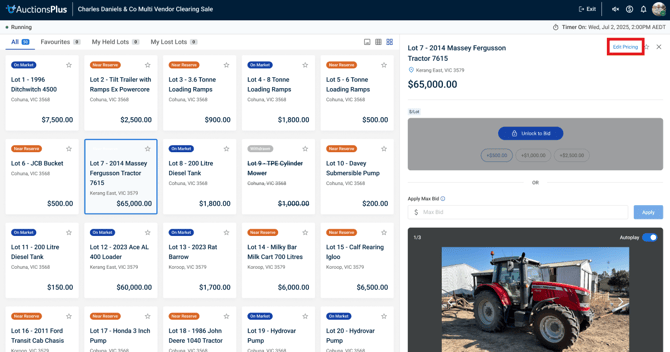
What values do you wish to update?
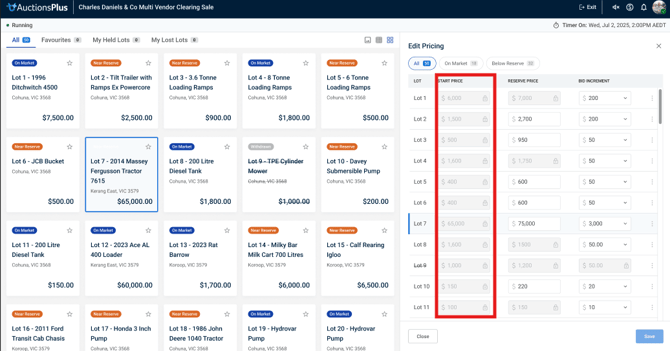
Start Price
Update the opening bid price for a listing that hasn't yet received any bids.
Steps:
-
Scroll to the listing
-
Enter the new value in the Start Price field
-
Repeat for any additional listings if needed
-
Select Save
Active bidders will automatically receive the notification: "Start price has been reduced."
-
Only available for listings that have not yet received a bid
-
Can only be updated once
-
Must be a decrease (cannot increase the start price)
-
The new price must align to the current bid increment
Example: If the increment is $10 and the current start price is $30, the new start price must be $20 or $10.
Reserve Price
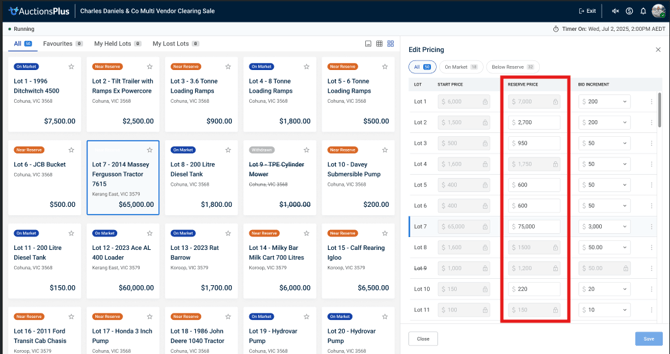
Lower the minimum price a seller will accept for a listing that hasn't yet reached reserve.
Steps:-
Scroll to the listing
-
Enter the new value in the Reserve Price field
-
Repeat for any additional listings if needed
-
Select Save
Active bidders will automatically receive the notification: "The reserve has been reduced."
-
Only available for listings where bidding has not yet reached reserve
-
Can only be updated once
-
Must be a decrease (cannot increase the reserve price)
-
The new reserve cannot place the lot "on the market" (i.e. at or below the current highest bid)
-
The new price must align to the current bid increment
Example: If the increment is $10 and the current reserve is $100, the new reserve must be $90 or $80.
Bid Increment
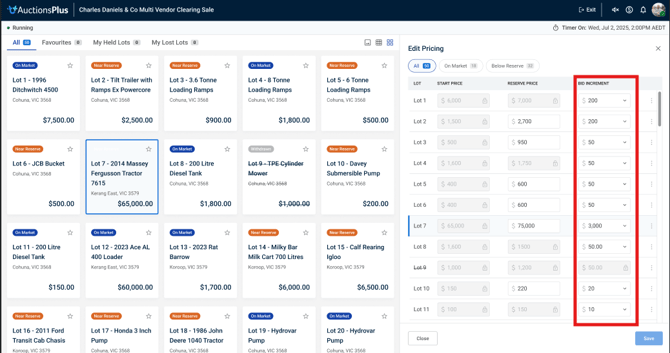
Change the amount each bid must increase by for a listing.
Steps:
-
Scroll to the listing
-
Enter the new value in the Bid Increment field
-
Repeat for any additional listings if needed
-
Select Save
Active bidders will automatically receive the notification: "Please note that the bidding increment has changed."
Conditions:
-
Can only be updated once
-
Can be either an increase or decrease
-
Cannot be less than 1% of the Reserve Price
-
Must be a whole dollar amount (no cents)
Example: If the reserve is $100, the minimum increment is $1.
How to update One Bid Away
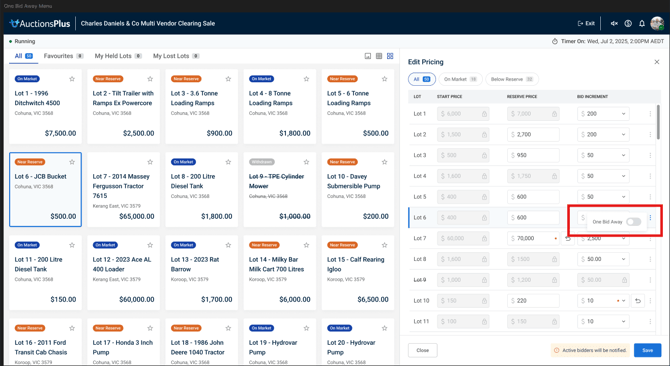
Automatically sets the Reserve Price and Bid Increment so that the very next bid will place the lot "on the market." Useful when the vendor is motivated to sell.
Steps:
-
Select the options menu (⋯) next to the appropriate listing
-
Toggle One Bid Away on
-
Repeat for any additional listings if needed
-
Select Save
Conditions:
-
Only available for listings where bidding has not yet reached reserve
-
Cannot be activated if doing so would immediately place the lot "on the market" based on the current highest bid