
- Buy the machinery you missed out on — Every eligible unsold lot is automatically available for offers post-auction. If you bid on it, you can still buy it.
- Get notified instantly — Receive an AuctionsPlus mobile app push notification the moment a lot you bid on becomes available for offers. No more checking back manually.
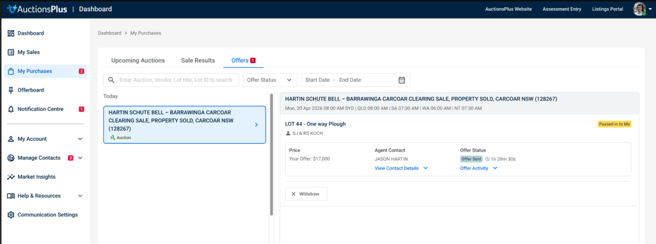
- Submit offers in seconds — Make an offer directly from the lot information page or from the new "Offers" tab in your Dashboard — no phone calls, no waiting.
- Track your offers in one place — A new "Offers" tab in your Dashboard shows every offer you've submitted, along with its current status.
Getting Started - Download the AuctionsPlus Mobile App
To receive real-time notifications when unsold lots become available for offers, install the AuctionsPlus app on your mobile device:
- Download from the App Store (iPhone) or Google Play (Android)
- Log in with your existing AuctionsPlus account credentials
- Link to detailed instructions detailing How to install the AuctionsPlus mobile app
Once activated, you will receive notifications whenever a lot you bid on becomes available for post-auction offers.
Finding Lots Available for Offers
There are three ways to discover unsold lots that are available for Make an Offer:
1. Click The Push Notification
The moment a lot you bid on becomes available for offers, post-sale, you’ll be notified. Click the notification to navigate straight to your Dashboard where you can submit an offer directly to the agent.
2. Your Offers Dashboard
A new "Offers" tab has been added to Dashboard > My Purchases. This tab shows lots you bid on during auction that are now available for offers.
3. The Trade Now Page
Make an Offer-enabled lots are automatically surfaced on the Trade Now page, making them visible to all platform users — including buyers who did not bid in the original auction.
Submitting an Offer
How to submit an offer from your Dashboard:
- Go to Dashboard > My Purchases > Offers tab
- Find the lot you want to make an offer on
- Enter your offer amount in the Make an Offer field
- Click Submit Offer
What happens after you submit:
- Your offer is sent to the listing agent for review
- The offer status on your Dashboard will update to Offer Sent
- You will receive a notification once the agent accepts or declines your offer
Understanding Offer Outcomes
Once you submit an offer, the listing agent will review it and take action. Here's what each outcome means for you:
|
Outcome |
What You See |
What It Means |
|
✅ Accepted |
Notification: "Offer of $XXX for Lot XX accepted by seller." Your Dashboard shows Sold to Me. |
Congratulations — you've purchased the lot at your offer price. The lot is automatically updated to SOLD. |
|
❌ Declined |
Notification: "Your offer has been declined by the selling agent." Your Dashboard shows Declined. |
The agent has declined your offer. The lot may still be available for offers — you can submit a new offer if you wish. |
Quick Reference — Key Actions Summary
|
I want to… |
Where to go |
What to do |
|
See lots I bid on that are available for offers |
Browse available lots |
|
|
Submit an offer on a lot I bid on |
Enter offer amount, click Submit Offer |
|
|
Submit an offer on any unsold lot |
Lot Information Page (via Trade Now, search, or notification) |
Enter offer amount, click Submit Offer |
|
Check the status of an offer I submitted |
Review the Offer Status column |
|
|
Browse all unsold lots available for offers |
Trade Now page |
Browse Make an Offer-enabled lots |
|
Change my notification settings |
Toggle Make an Offer Notifications ON/OFF |
Need Help?
For any questions about the automated Make an Offer feature, contact the AuctionsPlus Customer Service Team:
- Phone: (02) 9262 4222