
A+ Bloodlines is the official verification of a commercial listing's bloodlines. It connects studs and commercial vendors on AuctionsPlus so that stud producers can protect their brand, commercial sellers can leverage the genetics they invest in, and buyers can purchase with confidence knowing what they are buying is verified.
A+ Bloodlines puts you in control. With this feature you can:
-
Protect your brand — Verify vendors claiming your bloodline, promote accurate claims from commercial buyers
-
Promote your genetics — Approved listings display a highly visible "Stud Verified" badge, making your bloodline stand out to quality-driven buyers
-
Build your network — See exactly which commercial vendors are using your genetics, track claim volumes, and strengthen relationships with your clients
-
Reach new buyers — Buyers can filter and search specifically for "Stud Verified" listings, increasing exposure for vendors who use your bloodline
This feature is available at no additional cost to stud livestock vendors hosting auctions on AuctionsPlus.
Getting Started
Step 1 — Download the AuctionsPlus Mobile App
To receive real-time notifications of bloodline claims, install the AuctionsPlus app on your mobile device:
-
Download from the App Store (iPhone) or Google Play (Android)
-
Log in with your existing AuctionsPlus account credentials
-
Link to detailed instructions detailing How to install the AuctionsPlus mobile app
Step 2 — Enable A+ Bloodline Notifications
Once the app is installed:
-
Update your notification settings by either
-
Click to jump straight to Notification Settings
-
- Or open your AuctionsPlus Dashboard and navigate to Notification Settings
-
-
Select your Bloodline Notifications options - App (highly recommended)
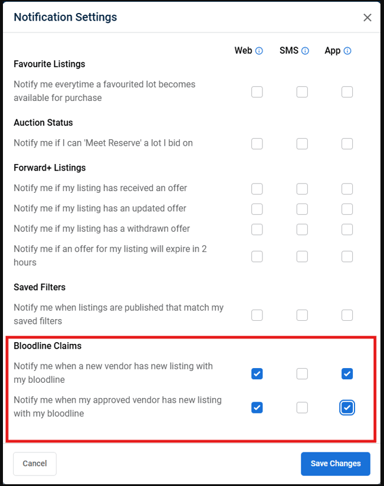
Once activated, you will begin receiving notifications whenever a commercial vendor claims your bloodline in a livestock assessment.
Your A+ Bloodline Verification Dashboard
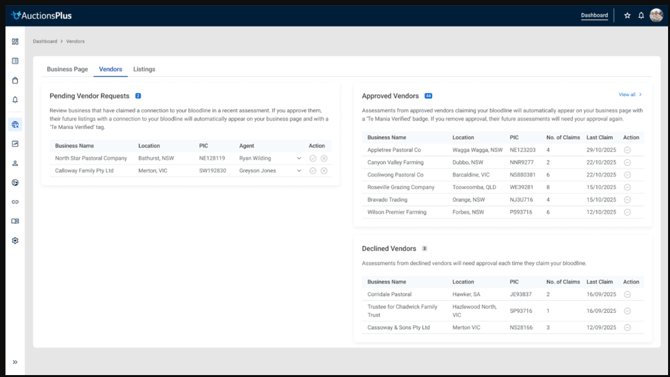
Your dashboard is the central hub for managing all bloodline verification activity. It is accessed via Dashboard > Vendor and contains two main tabs: Vendors and Listings.
Desktop view of the Vendors tab — showing Pending Vendor Requests (left), Approved Vendors and Declined Vendors (right).
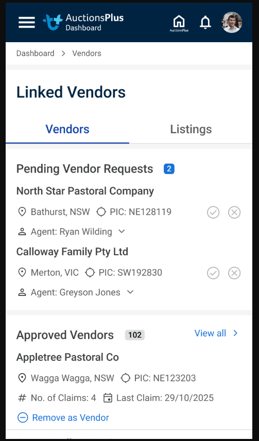
The dashboard is also fully accessible on the AuctionsPlus mobile app:
Mobile app view of the Linked Vendors dashboard.
Managing Vendor Requests (Vendor Tab)
When a new commercial vendor claims your bloodline for the first time, you will receive a notification and the request will appear in your Pending Vendor Requests section.
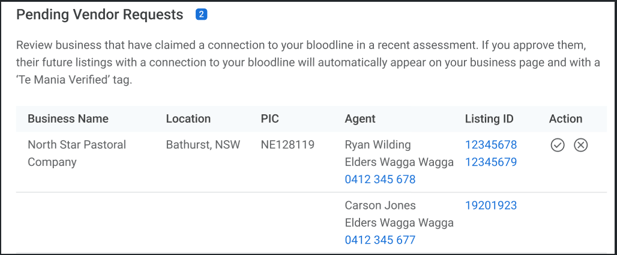
Pending Vendor Requests — each request shows the vendor's business name, location, PIC, and their agent's contact details.
How to review a pending request:
-
Go to Dashboard > Vendor > Vendors tab
-
Review the Pending Vendor Requests section
-
For each vendor, you will see:
-
Business Name — the vendor's trading name
-
Location — town and state
-
PIC — the vendor's Property Identification Code
-
Agent — the vendor's livestock agent (expand for phone and email)
-
Listing ID - the listing reference containing claim (click to access further detail)
-
-
Choose an action:
-
✅ Accept — The vendor is added to your pre-approved list. All their future A+ Bloodline claims will be automatically verified and display the "Stud Verified" badge
-
❌ Decline — The vendor is NOT added to your pre-approved list. Their listings will NOT receive the "Stud Verified" badge. Their agent will be notified with the message: "Your bloodline claim has not been verified. Please contact the livestock stud for more detail"
-
Tip: If you decline a vendor and later change your mind (e.g., after speaking with their agent), you can reverse the decision and move them to Approved status.
Managing Approved Vendors
Once you approve a vendor, they appear in the Approved Vendors section. Any future A+ Bloodline claims from these vendors will be automatically verified — no further action required from you.
Approved Vendors table — track each vendor's claim history, location, and PIC at a glance.
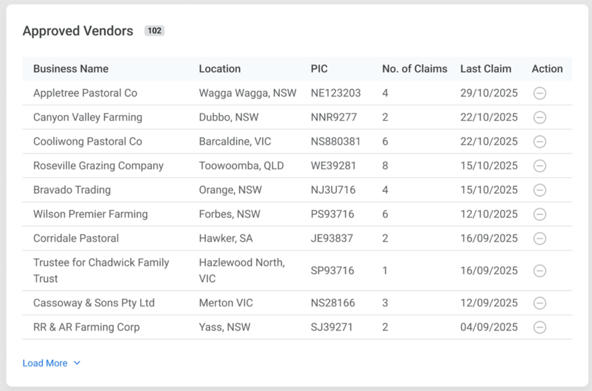
The Approved Vendors table displays:
-
Business Name — vendor's trading name
-
Location — town and state
-
PIC — Property Identification Code
-
No. of Claims — total bloodline claims the vendor has made
-
Last Claim — date of the most recent claim
-
Action — option to Remove the vendor
Removing an Approved Vendor
If you need to remove a vendor from your pre-approved list:
-
Find the vendor in the Approved Vendors table
-
Click the Remove (⊖) button
-
The vendor will be moved out of the pre-approved list
What happens next:
-
Future listings from this vendor will no longer automatically receive the "Stud Verified" badge
-
If the vendor uploads a new listing claiming your bloodline, you will receive a notification to Accept or Decline — just like a new vendor request
Reviewing Listings (Listings Tab)
The Listings tab gives you visibility over all recent assessments from your approved vendors that claim your A+ Bloodline.
Recent Vendor Listings — view all assessments from approved vendors claiming your bloodline within the last 6 weeks.
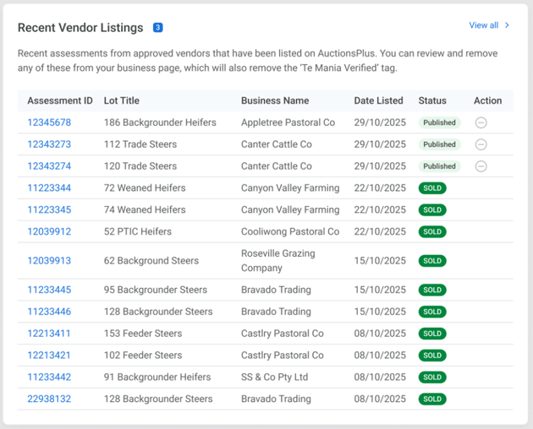
Recent Vendor Listings
This section displays listings from your pre-approved vendors over the last 6 weeks, including:
-
Assessment ID — clickable link to the assessment
-
Lot Title — description of the lot (e.g., "186 Backgrounder Heifers")
-
Business Name — the vendor who claimed your A+ BLOODLINE
-
Date Listed — when the assessment was uploaded
-
Status — current listing status (Published, Sold, etc.)
-
Action — option to Exclude the listing
Excluding a Listing
If you spot a listing from an approved vendor that you believe should not carry your "Stud Verified" badge:
-
Go to the Listings tab
-
Find the listing in the Recent Vendor Listings table
-
Click the Exclude (⊖) button
-
The "Stud Verified" badge will be removed from that listing
Important: Excluding a listing does NOT remove the vendor from your approved list. Their future claims will still be automatically approved. If you want to stop all future automatic approvals for a vendor, use the Remove Vendor action on the Vendors tab instead.
Removed Listings
Listings you have previously excluded will appear in the Removed Listings section. You can re-approve a removed listing (provided the sale has not already passed) to restore its "Stud Verified" badge.
Notifications
A+ Bloodline App notifications keep you informed in real time. Notifications are delivered to designated contacts assigned to your stud company. Contact the AuctionsPlus Market Operations team if you wish to add team members.
Example mobile push notification — "2 new bloodline claims in this week's W&Y sale. View now."
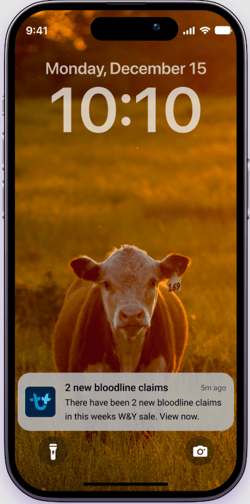
Types of notifications you will receive:
|
Notification |
Action Required? |
What It Means |
|---|---|---|
|
New vendor claim |
✅ Yes |
A vendor NOT on your pre-approved list has claimed your A+ Bloodline. You need to Accept or Decline. |
|
Pre-approved vendor claim |
❌ No |
A vendor already on your approved list has uploaded a new listing with your bloodline. The "Stud Verified" badge is automatically applied. This is for your information only. |
How notifications are delivered:
-
App push notification — on your mobile device (requires the AuctionsPlus app)
-
SMS — to your registered mobile number
-
Web — in your AuctionsPlus Dashboard notification centre
Notification grouping: Daily claims are grouped into a single notification (e.g., "You have 3 new bloodline claims") delivered at a set time each day.
Tapping a notification takes you directly to your A+ BLOODLINE Verification Dashboard where you can review and action any claims.
What Buyers See — The "Stud Verified" Badge
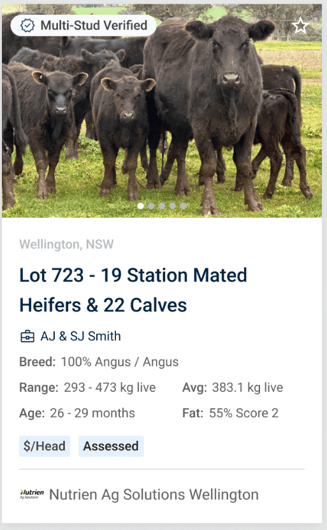
When you approve a vendor's A+ Bloodline claim, a highly visible "Stud Verified" badge appears on the listing's lot tile. This badge is immediately recognisable to buyers browsing the AuctionsPlus catalogue.
Lot tile with a single "Stud Verified" badge (e.g., "Te Mania Verified").
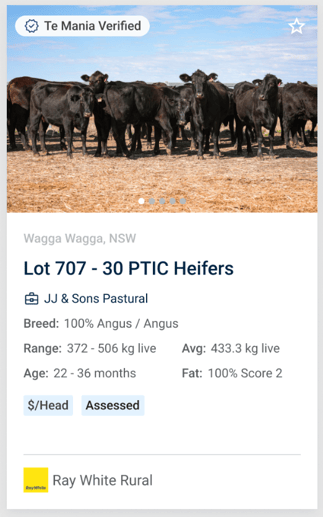
Lot tile with a "Multi-Stud Verified" badge — displayed when livestock carry multiple verified A+ Bloodline.
Why this matters to you:
-
Your stud name is prominently displayed on every verified listing
-
Buyers can filter and search specifically for verified A+ Bloodlines— increasing the visibility of your clients' listings
-
Verified listings can be included in buyers' Saved Searches, meaning buyers interested in your bloodline will automatically receive notifications when new verified lots are listed
-
Your brand is reinforced every time a buyer browses the catalogue
Quick Reference — Key Actions Summary
|
I want to… |
Where to go |
What to do |
|---|---|---|
|
Review a new vendor claiming my bloodline |
Dashboard > Vendors > Pending Vendor Requests |
Accept ✅ or Decline ❌ |
|
See all my approved vendors |
Dashboard > Vendors > Approved Vendors |
Review list, remove if needed |
|
Remove a vendor from my approved list |
Dashboard > Vendors > Approved Vendors |
Click Remove (⊖) |
|
Review recent listings using my bloodline |
Dashboard > Vendors > Listings tab |
Browse Recent Vendor Listings |
|
Remove the verified badge from a listing |
Dashboard > Vendors > Listings tab |
Click Exclude (⊖) on the listing |
|
Re-approve a previously excluded listing |
Dashboard > Vendors > Listings tab > Removed Listings |
Click Approve (if sale has not passed) |
|
Change notification settings |
Dashboard > Notification Settings |
Toggle Bloodline Notifications ON/OFF |
Need Help?
For any questions about A+ Bloodline, contact the AuctionsPlus Customer Service Team:
-
Phone: (02) 9262 4222