
Automated Make an Offer puts post-sale negotiation on autopilot. With this feature you can:
- Sell more lots with less effort — Every eligible unsold lot is automatically opened to buyer offers immediately post-auction. No manual opt-in required.
- Stay in control — Accept or decline from a single dashboard tab. Disable automated Make an Offer on any individual lot at any time.
- Let notifications do the chasing — Bidders who showed interest during the auction are automatically notified that the lot is available for offers, bringing them back to the platform.
- Extend your selling window — Make an Offer remains active for 7 days post-sale, giving buyers time to act and giving you more chances to close.
This feature is available at no additional cost to machinery listing agents on both stand-alone SIM machinery sales and AuctionsPlus multi-vendor machinery & fodder auctions.
Getting Started - Ensure the AuctionsPlus Mobile App Is Installed
To receive real-time notifications when buyer offers are submitted, install the AuctionsPlus app on your mobile device:
- Download from the App Store (iPhone) or Google Play (Android)
- Log in with your existing AuctionsPlus account credentials
- Link to detailed instructions detailing How to install the AuctionsPlus mobile app
Once activated, you will begin receiving notifications whenever a buyer submits an offer on one of your unsold lots.
How automated Make an Offer Works
Make an Offer activates automatically when your auction closes. There is no manual step to enable it. Here is what happens:
|
Auction Outcome |
What Happens |
Minimum Offer Value |
|
No Bids — The lot received zero bids |
Make an Offer is automatically enabled immediately post-auction |
Set to the start price you configured pre-sale |
|
Passed In — Bidding did not reach reserve and the 90-minute Meet Reserve window has expired without a sale |
Make an Offer is automatically enabled after the Meet Reserve window closes |
Set to the highest bid at the close of auction |
|
Sold — Lot sold at auction or via Meet Reserve |
Make an Offer is NOT enabled |
N/A |
Important: Make an Offer is only available for 7 days after the sale closes. After 7 days, buyers clicking a notification are prompted to contact you directly. If the lot is reoffered to a future auction, Make an Offer is disabled.
Your Offers Dashboard
Your dashboard is the central hub for managing all Make an Offer activity. It is accessed via Dashboard > My Sales > Offers and displays all the offers you have received on lots across your auctions.
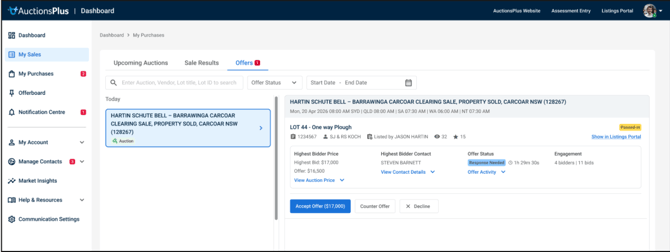
Managing Offers
When a buyer submits an offer on one of your unsold lots, you will receive a notification and the offer will appear in your Offers tab.
How to review and action a received offer:
- Go to Dashboard > My Sales > Offers
- Review the offers listed
- For each offer, you will see:
- Lot Number & Description — the lot the offer relates to
- Buyer Name — the buyer who submitted the offer
- Offer Amount — the value the buyer is offering
- Minimum Offer Value — the threshold you have set
- Choose an action:
- ✅ Accept — The lot is automatically updated to SOLD to the buyer who made the offer. All other offers on that lot are automatically rejected. The buyer is notified of the successful purchase.
- ❌ Decline — The offer is rejected. The buyer receives a notification that their offer has been declined by the selling agent.
Tip: Accepting an offer is final and cannot be reversed. The lot will be marked as SOLD across both your dashboard and the publicly visible catalogue.
Disabling Make an Offer on a Lot
If you do not wish to receive offers on a specific lot — for example, if you are negotiating directly with a buyer offline — you can disable MaO at the lot level.
How to disable MaO on a lot:
- Go to Dashboard > My Sales > Offers
- Find the lot you wish to remove from offers
- Select Disable MaO
- The lot will no longer be available for buyer offers
What happens next:
- Buyers will no longer be able to submit offers on this lot
- The lot will be removed from the Trade Now page
- You can still reoffer the lot to a future auction or update it to SOLD manually
Quick Reference — Key Actions Summary
|
I want to… |
Where to go |
What to do |
|
Review offers I've received |
Browse received offers |
|
|
Accept a buyer's offer |
Click Accept ✅ on the offer |
|
|
Decline a buyer's offer |
Click Decline ❌ on the offer |
|
|
Disable Make an Offer on a specific lot |
Click Disable Make an Offer on the lot |
|
|
Change notification settings |
Toggle Make an Offer Notifications ON/OFF |
|
|
Update an unsold lot to SOLD (manual) |
Select the lot and click Update to SOLD |
Need Help?
For any questions about Make an Offer, contact the AuctionsPlus Customer Service Team:
- Phone: (02) 9262 4222